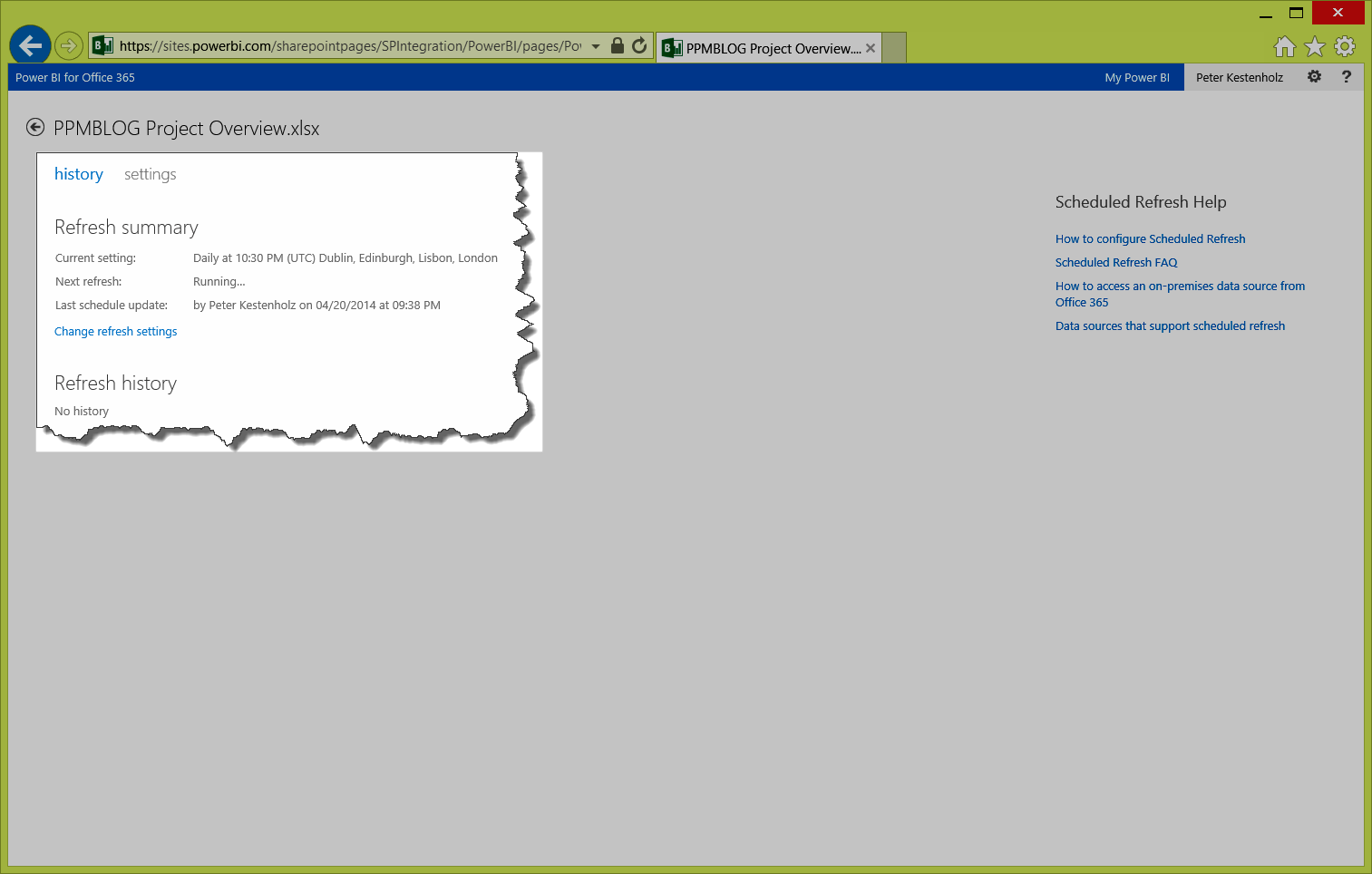
Are you using Excel Services to render your Project Online (OData) reports for the end-users? If yes, I guess you would like to have all those reports being refreshed automatically without disturbing anyone.
Here is one simple solution – use Power BI for Office 365. This will not only allow for auto-refresh but also enable the new “Q&A” feature and other cool functionalities.
As an example I have created a quick tutorial showing the path from your OData report to auto-refresh enabled. Please notice that this requires a minimum purchase of one Power BI license for Office 365. For more Power BI information go to: http://www.microsoft.com/en-us/powerbi/
1. Navigate to the Site Contents area of your PWA home page
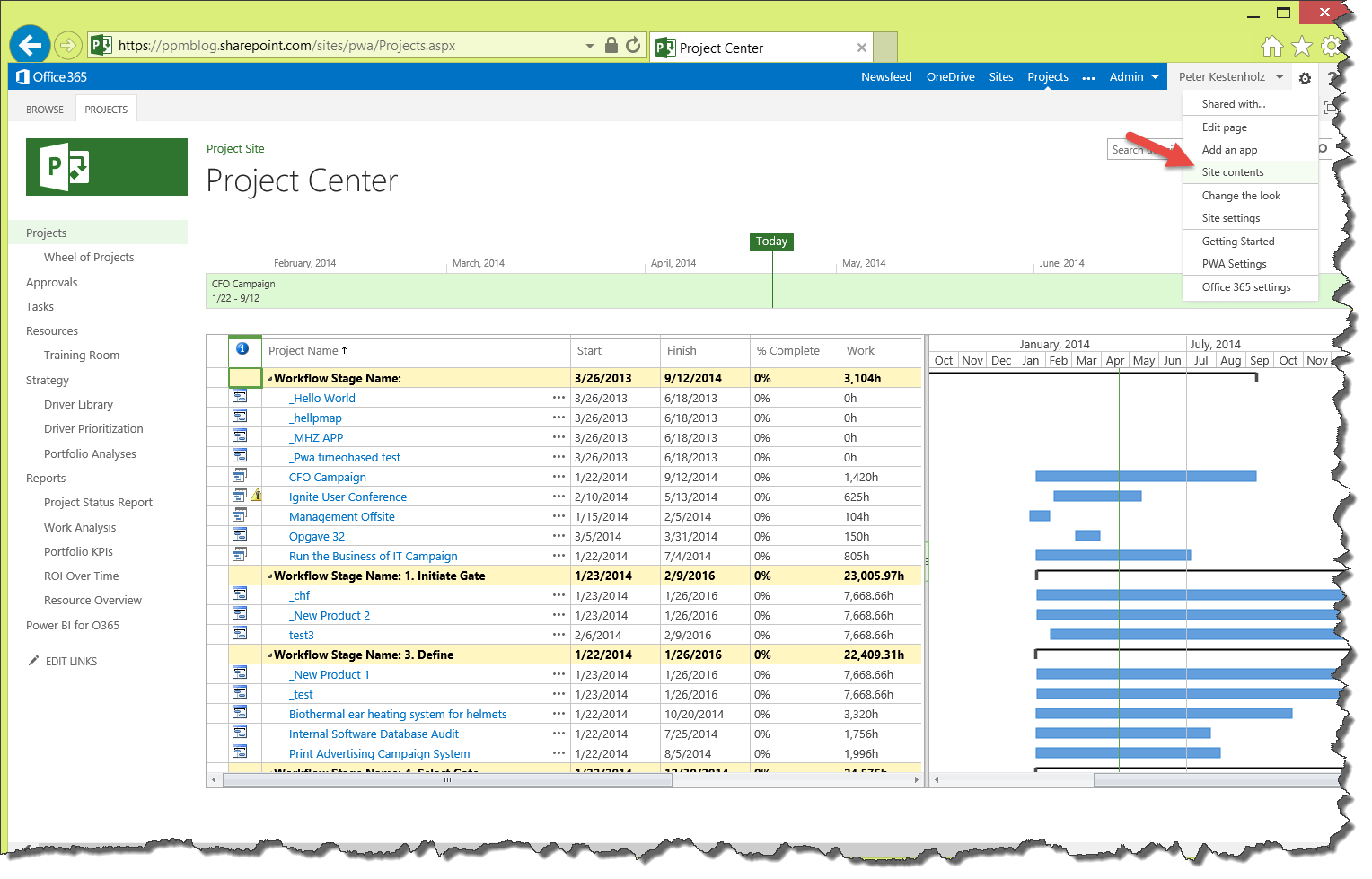
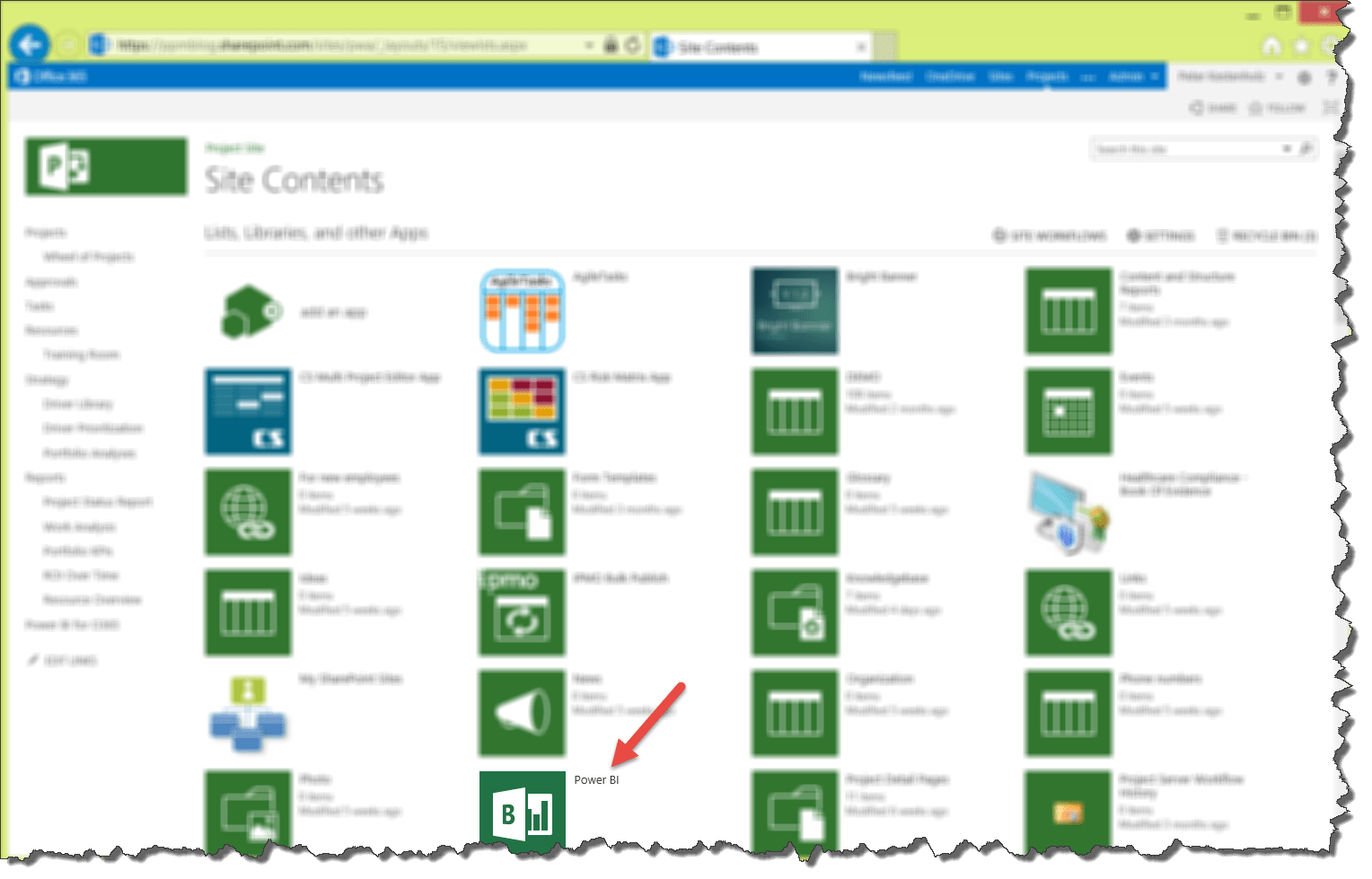
2. If you have the license to Power BI you should now see the app available
3. From the Power BI homepage create a folder and/or upload a new file (report)

4. You should now see the report in the Power BI folder and hopefully also a beautiful screendump from the worksheet (which would be the sheet you last saw before saving and exiting Excel)
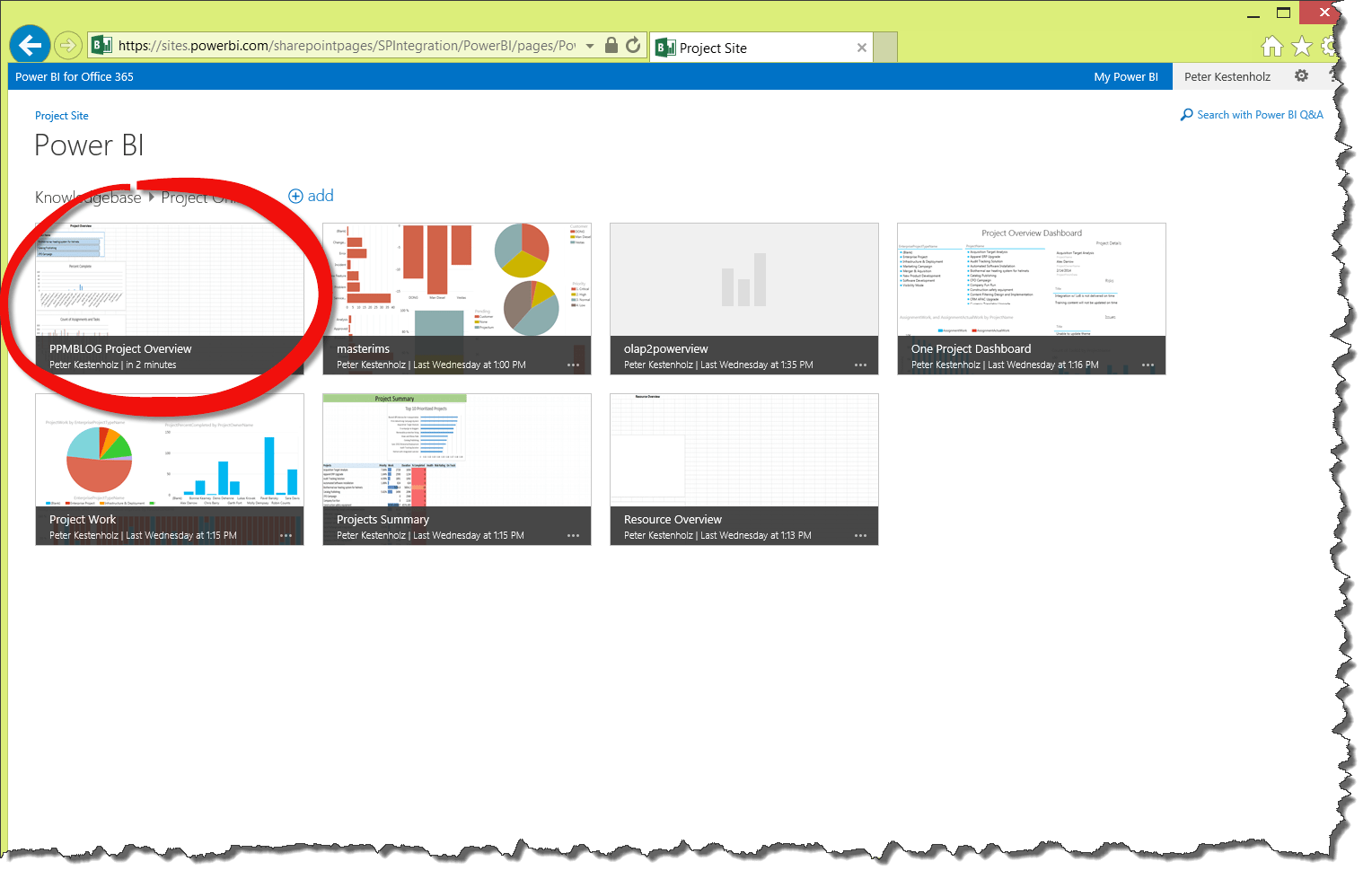
5. Click on the “…” and go to “Schedule Data Refresh”
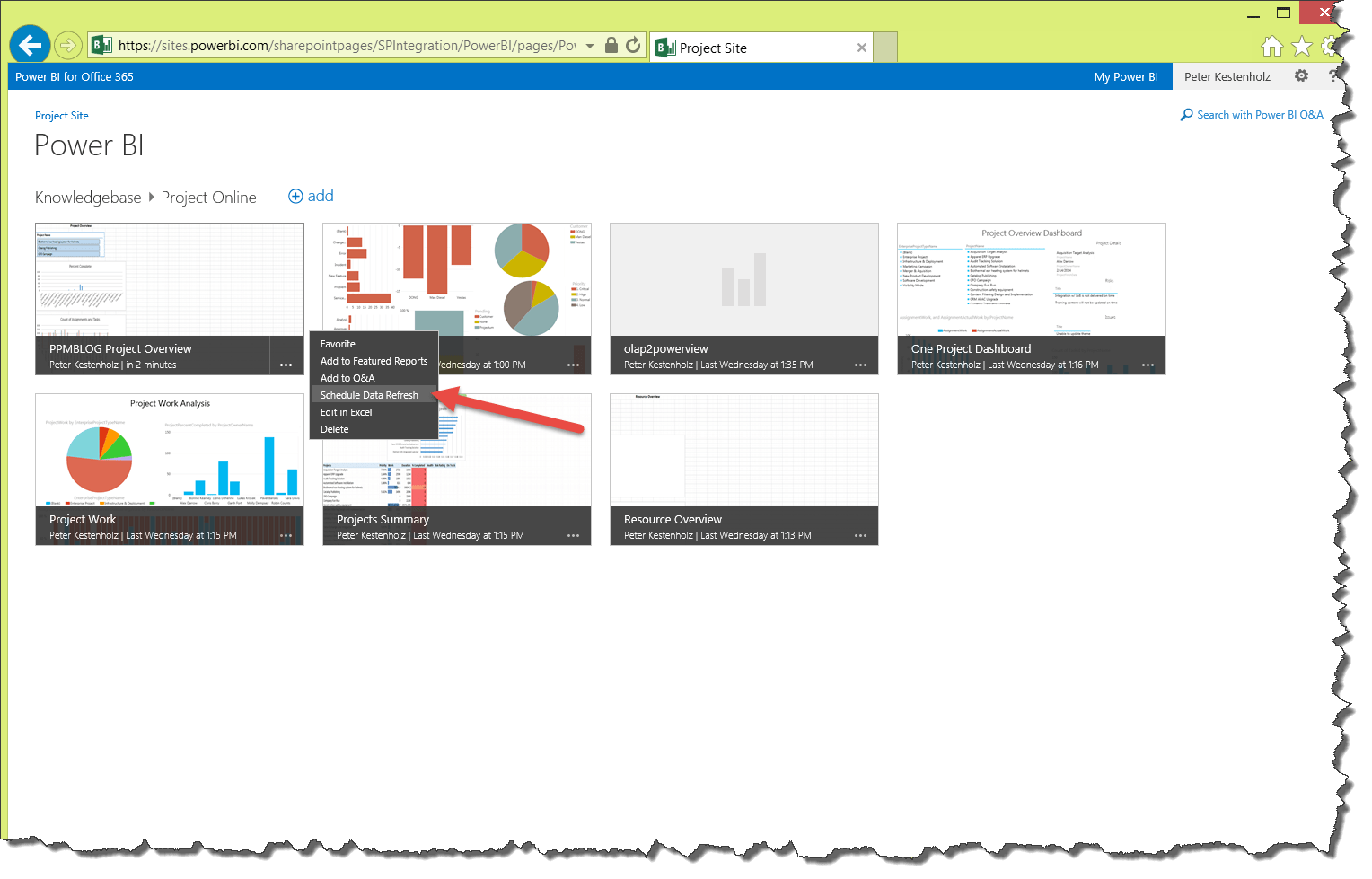
6. Et voila! You can now turn on “Refresh Schedule” and set up a daily or weekly timer job. If using multiple data connections you can even control which ones should be impacted.
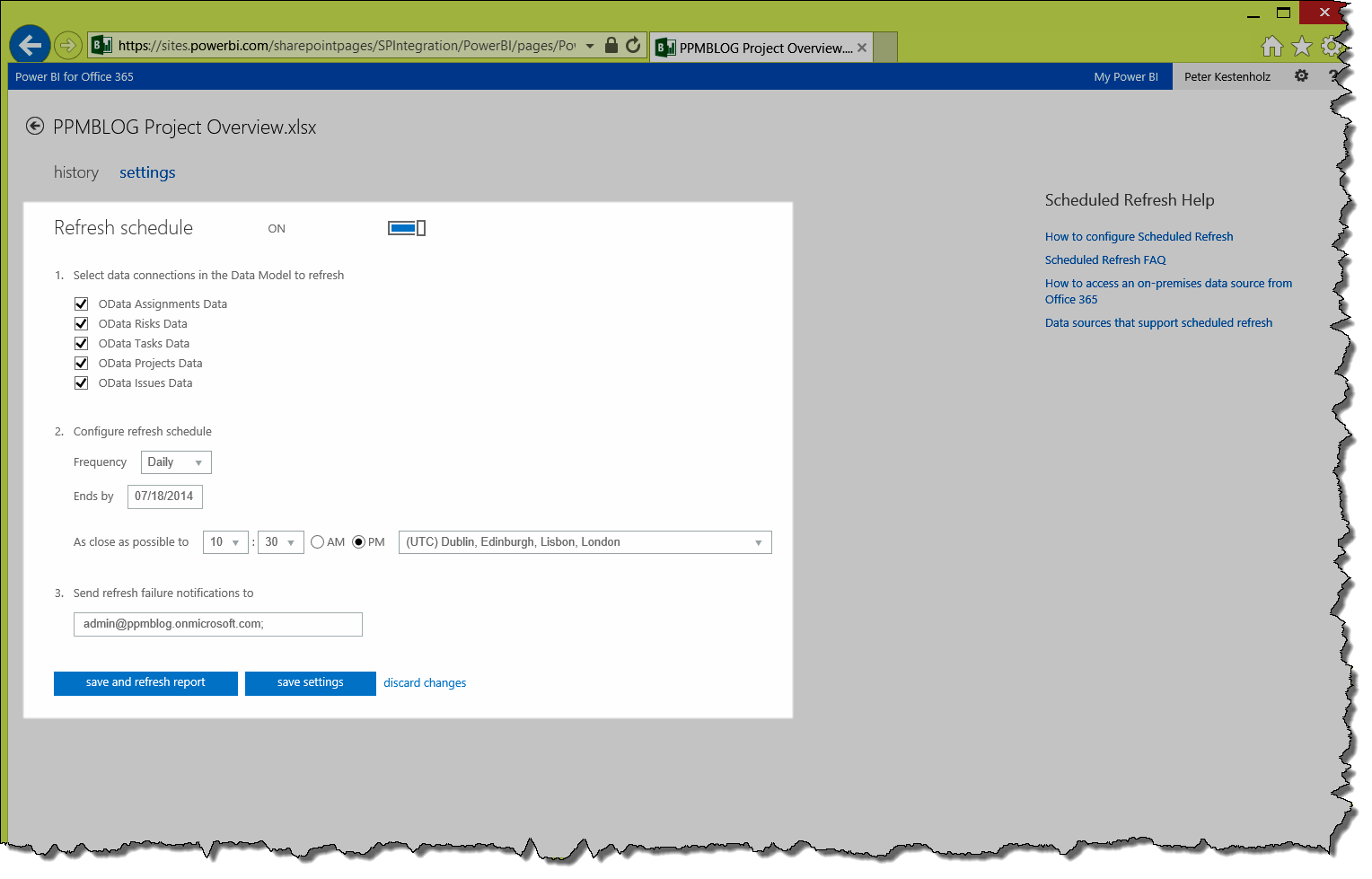
7. Also included in the refresh job is a “history” area where previous refresh jobs can be found and monitored